
Multi-Location Online Scheduling
Business Reporting Groups — Request & Scheduler Setup
Overview
Business Reporting Groups let multiple physical locations (shops/branches/facilities) be rolled up under a single business or corporate group for reporting and benchmarking, and they enable multi-location functionality in the Online Scheduler.
Benefits
- Multi-location Benchmarking — aggregate locations under one group for Group Summary / Benchmark reports so customers can view combined KPIs across their sites.
- Multi-location Scheduler behavior — the Scheduler supports group-aware scheduling and configuration so appointments and capacity behave correctly per location.
What's needed
Ask the customer to provide a single spreadsheet or CSV with one row per location including the following columns:
- Reporting Group — the corporate/business group name to roll locations under
- Business ID — unique internal/shop ID for each location
- Business Name(s)
- Create the Business Reporting Group using the provided group name and attach the listed Facility IDs.
- Create or verify Business Pages for each facility so locations are addressable in dashboards and reports.
- Enable the group for Benchmark reporting so it appears in Group Summary / Benchmark reports and in the benchmarking pipeline.
- Turn on multi-location behavior in Scheduler (if requested) by updating Scheduler configuration so the group is available and behaves correctly for public booking and admin views.
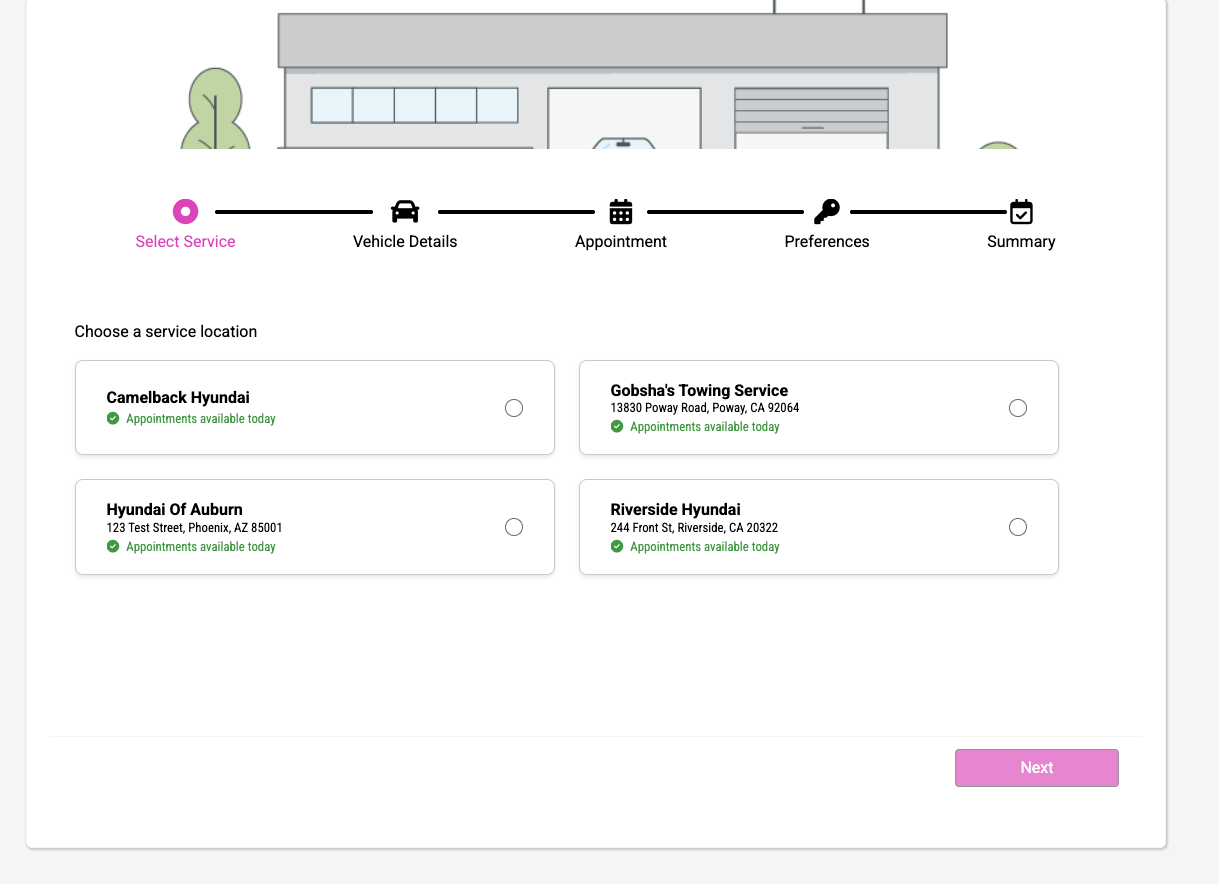
- Customers have a single entry point listing all group locations and can quickly pick which site to book.
How to request a Business Reporting Group (what to send to Support)
Send an email to: support@surecritic.com
Subject line: Request: Create Business Reporting Group - <Business Name>
Suggested email body
<code>Hi Support Team,

Please create a Business Reporting Group named <Reporting Group Name> and add the following locations to that group. .


Business ID, Business Name, Address, City/State/Zip,
Business ID, Business Name, Address, City/State/Zip,
Business ID, Business Name, Address, City/State/Zip,
Business ID, Business Name, Address, City/State/Zip, <br><br>

Thanks,
What Support will do
Multi-location Scheduler behavior (public booking flow)
How the public booking flow works
When a Business Reporting Group is enabled for the Online Scheduler, the public booking flow displays an aggregate landing page that lists all locations in the group (the group “first page”). A customer first sees that aggregated list and chooses the specific site they want to book with. After the customer selects a location, the booking flow proceeds into the selected location's schedule (calendar, available services, and time slots). This ensures customers can see every site up front and pick the correct location before viewing that location’s availability and booking rules.
Why this matters
Turning multi-location “on” in the Scheduler — Admin checklist
Open Configure Scheduler > Basic Setting and confirm the Business/Group appears in the business list.

Troubleshooting / FAQs
Q — The group rolls up incorrectly.
A — Confirm the Business IDs match our internal IDs . If the customer has an existing hierarchy, include the exact parent/hierarchy instructions when opening the ticket so Support applies the correct mapping.
Q — Scheduler still shows single-location behavior after setup.
A — Make sure the Scheduler admin has enabled the group and configured calendar/service settings for multi-location execution (business hours, staff availability, slot concurrency). If settings look correct but behavior is still wrong, escalate the ticket to Support with screenshots of Scheduler admin settings and the public landing page.
Example: minimal CSV the customer should supply
<code>Reporting Group,Facility ID,Business Name,Address,City,State,Zip,POC Name,POC Phone,POC Email
Dawn Automotive,000743,Dawn Auto Repair,123 Main St,Anytown,WA,98101,Jane Doe,555-555-1234,jane.doe@example.com